

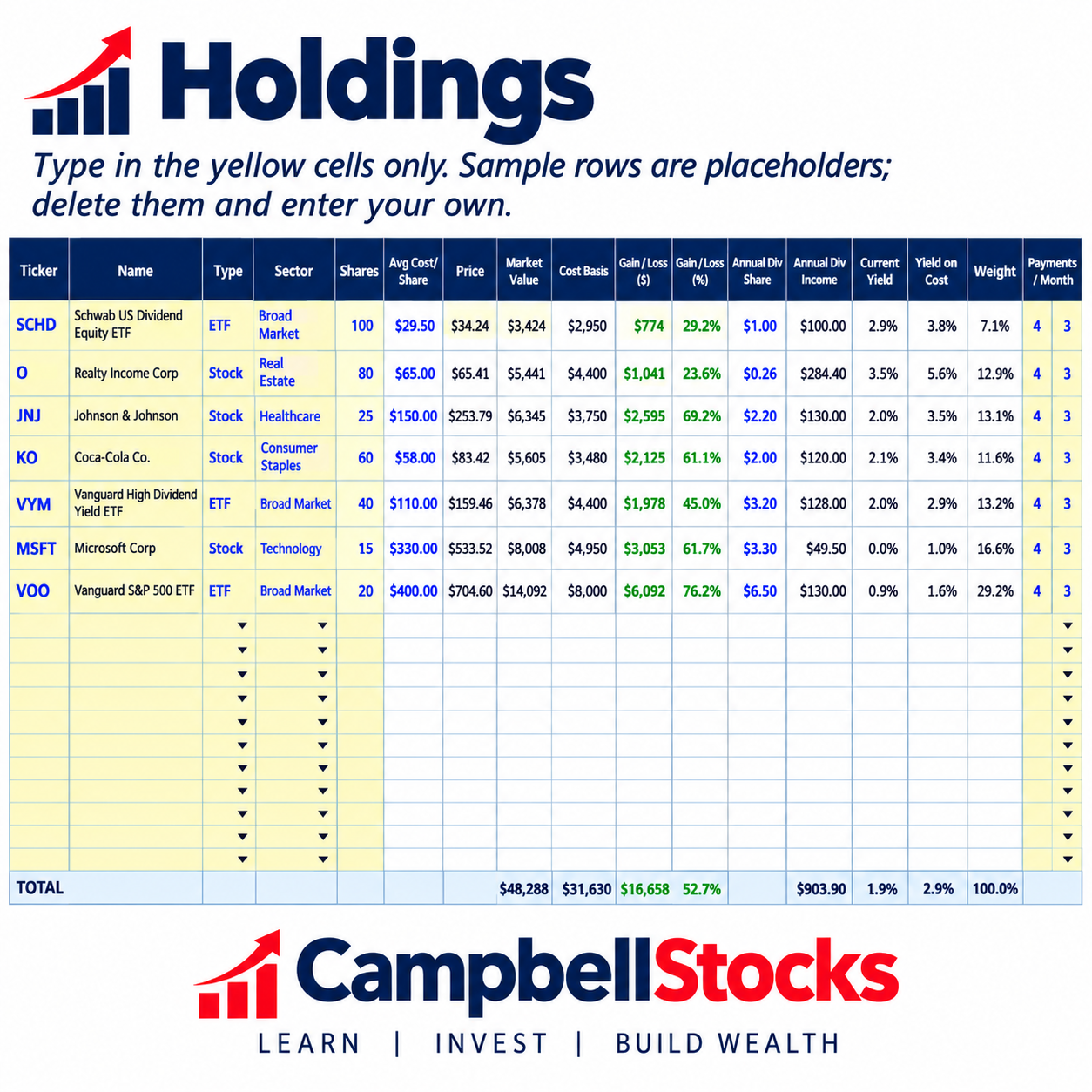
Learn how to track dividend income in Google Sheets: set up your holdings, pull live prices with GOOGLEFINANCE, and build a monthly dividend calendar. Free starter formulas included.
If you own dividend-paying stocks, ETFs, or REITs, you probably have a rough idea of what they pay. But can you say how much income you will receive in March versus April? Or what your yield on cost is?
A Google Sheet can answer all of this in about 20 minutes, and it is free. This guide shows you how to build it step by step.
What You Need
- A free Google account.
- A list of your holdings: ticker, number of shares, and average cost per share.
- The annual dividend per share for each holding. You can find it on your broker's page or the company's investor relations website.
Step 1: Set Up Your Columns
Open a new Google Sheet and create these headers in row 1:
| Column | Header |
|---|---|
| A | Ticker |
| B | Shares |
| C | Average Cost |
| D | Price |
| E | Market Value |
| F | Annual Dividend per Share |
| G | Annual Dividend Income |
Enter your holdings starting in row 2. For example, enter the ticker in A2, the number of shares in B2, and your average cost per share in C2.
Step 2: Pull Live Prices with GOOGLEFINANCE
In cell D2, enter this formula:
=GOOGLEFINANCE(A2,"price")Drag the formula down for each holding. Google returns the latest available price, although quotes may be delayed. Treat them as informational rather than as real-time trading prices.
If you get an error, check the ticker spelling. Some tickers containing dots may need to be entered differently.
Step 3: Calculate Market Value
In cell E2, enter:
=B2*D2This formula multiplies the number of shares by the current share price to estimate the market value of your holding.
Step 4: Add Your Annual Dividend per Share
Enter the annual dividend per share in column F. For example, if a stock pays $0.50 every quarter, its annual dividend is $2.00 per share, assuming the payment remains unchanged.
Google's price function does not reliably provide dividend information, so entering the annual dividend yourself is a dependable approach. Update the figure when the company changes its payout.
Step 5: Calculate Annual Dividend Income
In cell G2, enter:
=B2*F2To calculate your total estimated annual dividend income, use this formula at the bottom of column G:
=SUM(G2:G20)Adjust the range to include all your holdings. This total estimates your annual dividend income before taxes and assumes the entered dividends remain unchanged.
Step 6: Understand the Two Yield Numbers
Current yield measures a holding's annual dividend relative to its current share price.
=F2/D2Yield on cost measures the annual dividend relative to what you originally paid per share.
=F2/C2Format both results as percentages using Format > Number > Percent in Google Sheets.
If you bought a stock years ago and its dividend has grown, your yield on cost may be much higher than its current yield. If the share price has risen significantly, its current yield may be lower than it was when you purchased it.
Step 7: Build a Monthly Dividend Calendar
Different companies pay dividends in different months, so your income will not necessarily be the same every month. To estimate your monthly payments:
- Add a column for payments per year: 4 for quarterly, 12 for monthly, 2 for semi-annual, and 1 for annual payments.
- Add a column for the first payment month, using 1 for January through 12 for December.
- Create twelve columns, one for each month. Calculate a payment when the month matches the holding's estimated payment schedule.
The following formula uses MOD to check whether a month matches the payment schedule:
=IF(MOD(month_number-first_pay_month,12/payments_per_year)=0,annual_income/payments_per_year,0)Replace the descriptive names with your actual cell references or named ranges. Add up each month column to estimate your income for that month.
This is an estimate, not a guaranteed payment calendar. Companies set their own payment dates and amounts, and they can change them. Always check the actual declared dividends and payment schedules.
Step 8: Check Your Portfolio Concentration
Add a Sector column and use SUMIF to calculate how much of your portfolio belongs to a particular sector.
=SUMIF(sector_range,"Technology",market_value_range)A pie chart created through Insert > Chart makes it easier to identify whether one sector or one holding dominates your portfolio. You can also compare sector weights against your investment goals.
Common Mistakes to Avoid
- Counting a special dividend as regular income. Use the regular annual payout for recurring income estimates, and track special dividends separately.
- Forgetting that dividends are not guaranteed. Companies can reduce, suspend, or stop dividend payments.
- Ignoring taxes. Dividend tax treatment varies by jurisdiction and investment type. Consult a qualified tax professional if needed.
- Chasing high yield. An unusually high yield can indicate that investors expect a dividend cut or that the share price has fallen sharply.
Want the Ready-Made Version?
If you would rather not build everything yourself, I created a complete Dividend & Portfolio Tracker for Google Sheets. It includes live prices, gain and loss tracking, yield on cost, a 12-month dividend calendar, allocation charts by investment type and sector, and a monthly income goal tracker.
You enter your holdings, and the dashboard organizes the information to help you monitor your portfolio.
Dividend & Portfolio Tracker
Make dividend tracking easier with a ready-made Google Sheets dashboard.
Related Article
Doing Business by the Good Book Review: 5 Lessons for Entrepreneurs
Explore five lessons for entrepreneurs from Doing Business by the Good Book, with practical insights for building and managing a business.
Disclaimer: This article is for educational purposes only and is not investment, tax, or legal advice. Dividend payments are not guaranteed, and investment values can rise or fall. Conduct your own research or consult a licensed professional before making financial decisions.